Greetings beta testers!

Welcome to your Evo beta prototype guide.

Getting Started

To begin using your Evo, simply connect it to your Windows PC via the included USB-C cable. A new device should show up in your Devices and Printers window (control panel) called "Hex Evo". Open any text editor (or a game) and press the buttons and joystick to see the input being sent.

Hex Evo Button Layout

When pressed, the 'Shift Key' button enables a secondary action for all of the other 7 buttons (buttons 1-7), allowing 14 different inputs.

Also, pressing buttons 1+2, 3+4, and 6+7 at the same time gives three new inputs, which you can also pair with the 'Shift Key' function for yet 3 more inputs, for a total of 20.

Map any button to any in-game action that you want and fully replace the keyboard.

Accelerometer Funcion

Shake your Evo for an additional input. You can also shake it while pressing the "Shift Key" for yet another input.

Getting Used to your Evo

You're using a device for the first time. And that means you'll have to spend some time building your muscle memory around it, and getting used to pressing the inputs in your Evo. Here are some tips to make that experience seamless.

1) Try different holding positions. See which is best for you.

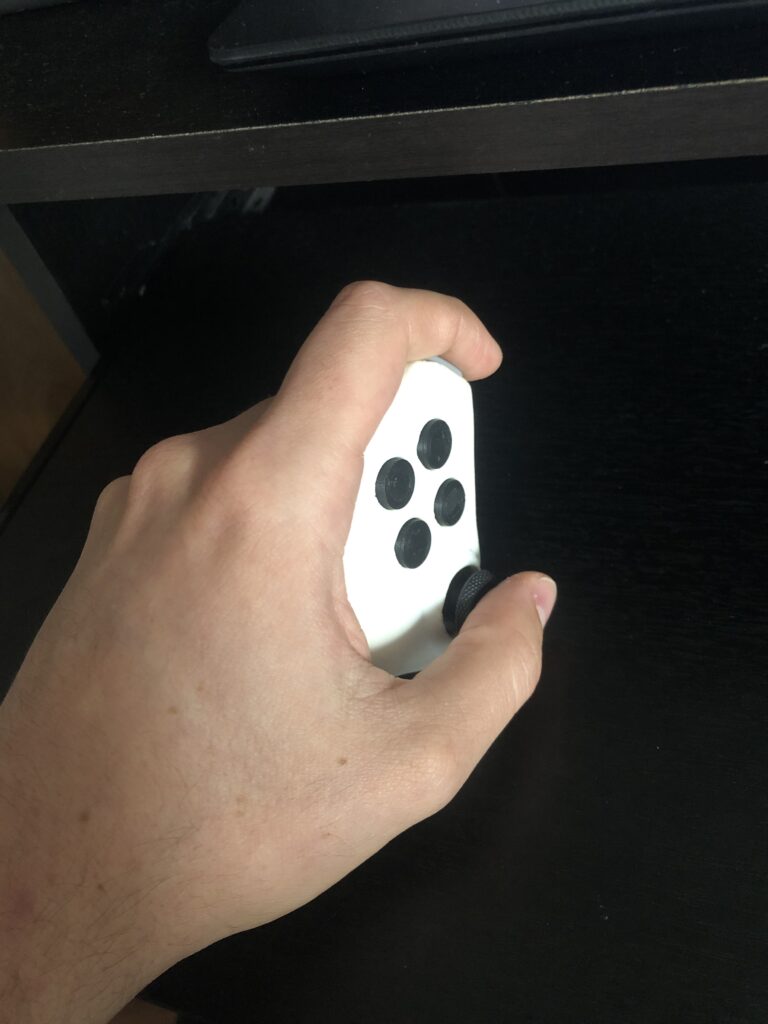
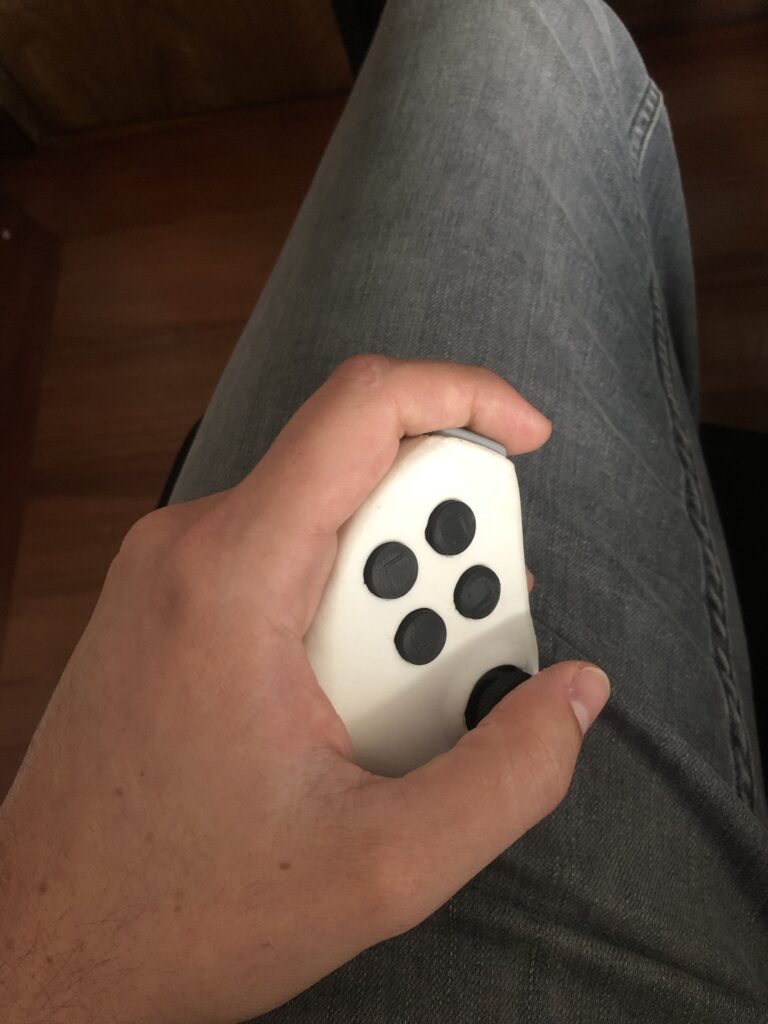
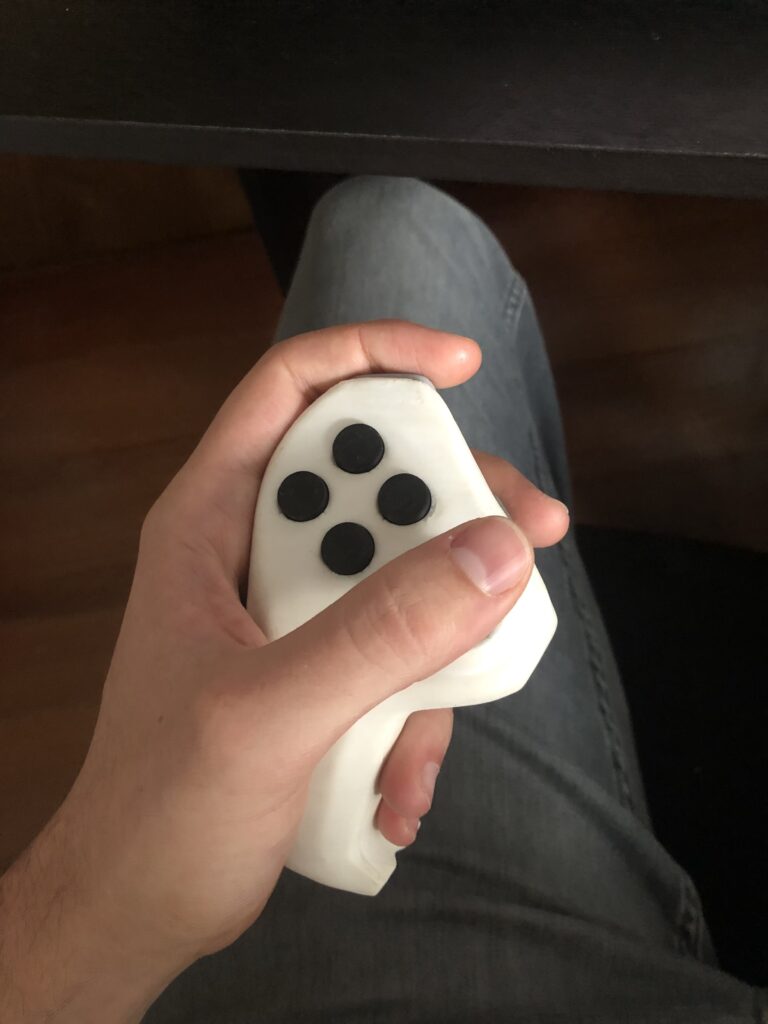
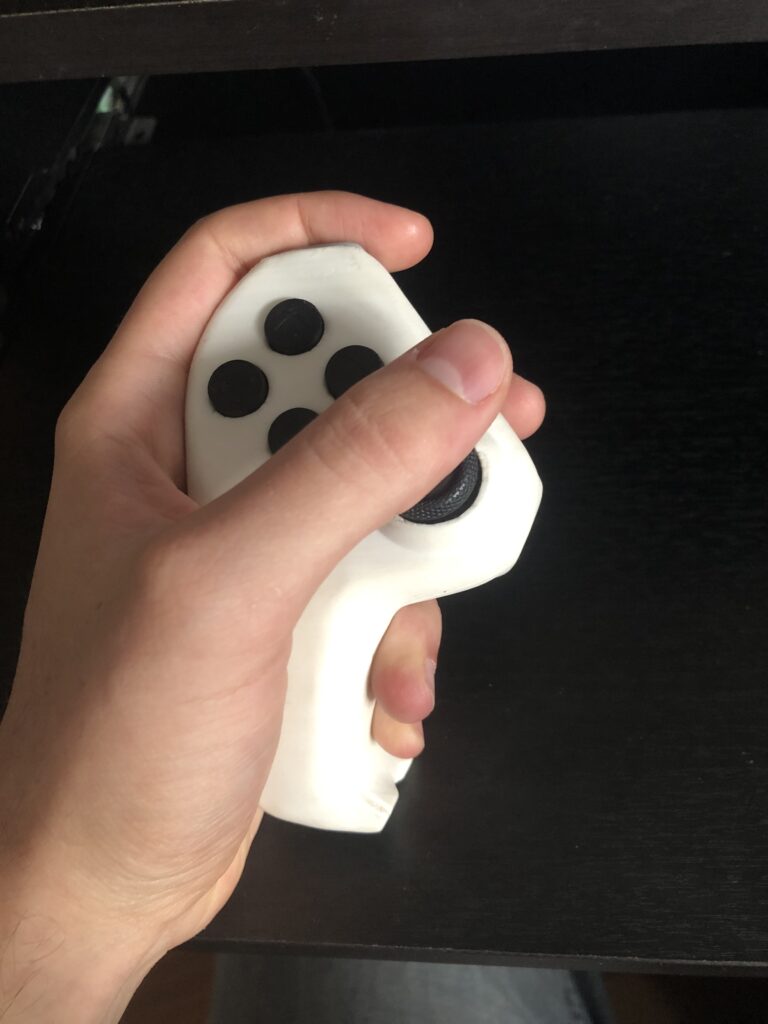
One of the advantages of the Hex Evo is that you're not desk-bound, and you can hold it wherever you feel most comfortable. Here are a few options.

A) Support it on your table (or any flat surface)

B) Support it on your lap

C) Hold it up (in the air)

D) Hold it up (back part of the handle supported on your table)

If you feel that pushing down the joystick button causes strain, options A and B are better for offering extra support on the right side of your Evo.

2) Get used to interacting with the buttons.

Performing actions by pressing two buttons at the same time (shift button function), may be new to you. I suggest you practice a little bit pressing all the combo presses before you get to gaming. This will help you get that natural feel and used to it quicker. Notice how I press the main combo presses in succession in the following video:


2) Set the correct keybinds

Assigning your most frequently used in-game actions to the most accessible buttons is very important! With the Evo, you can perform 8 inputs without taking your thumb away from the joystick. Those inputs are:

  • Button 5 (joystick button). 
  • Button 6
  • Button 7
  • Button 6+7 (press both with your index)
  • Button 5 + Shift Button
  • Button 6 + Shift Button
  • Button 7 + Shift Button
  • Button 6 + 7 + Shift button

All of these inputs are highly accessible because you don't have to move your fingers much (if at all) to reach them. You should assign your most important actions to them. You can leave the top buttons (buttons 1-4) for actions that are less frequently used, like opening up the map or inventory, for example. The following video shows Hex performing these 8 inputs (in the same order):


All of these inputs are highly accessible because you don't have to move your fingers much (if at all) to reach them, and you don't have to take your thumb away from the stick (i.e. you can move at the same time). I suggest you assign your most important actions to these 8 inputs. You can leave the top buttons (buttons 1-4) for actions that are less frequently used, like opening up the map or inventory, for example.

Taking Care of your Evo

Please follow these tips to take care of your beta prototype:

  • Please keep in mind that all plastic parts in the Evo are 3D printed, and are not designed to resist high pressure or impact. 
  • When pressing buttons, don't use more than the force needed to press the button. Pressing it too hard or continuing to apply force after the button is already pressed in may cause damage. 
  • Connect and disconnect the USB cable gently and with care. Make sure you're inserting the USB C cable plug directly towards the connector and not at an angle. 
  • If you want to open your Evo and take a peek inside, please get in touch with Hex before doing so. He will provide some recommendations to prevent damage. 
  • Do NOT connect/disconnect the USB C cable while the Hex Evo is open (i.e. the top enclosure is removed). 

Configuration Commands

The Evo has a set of configuration commands to flash new firmware, toggle between keymap profiles, and toggle the joystick input mode (WASD and controller mode). 

Flashing new firmware 

  • To enter bootloader mode, press buttons 1+5 while the Evo is connected to your PC. This allows you to flash new versions of the firmware. Please ONLY do this when Hex provides you with a new firmware, if you perform this command, your Evo will enter bootloader mode and will not be usable until you flash a new firmware. More info about this soon...

Toggling between keymap profile: 

  • To change keymap profiles, press buttons 2+5 for 5 seconds. The Blue LED will flash a number of times that corresponds to the keymap profile that you're on (e.g. 2 flashes means you're on profile 2). 

Changing joystick input mode: 

The joystick has two input modes: WASD (keyboard mode) and controller mode (analog). To toggle between joystick input modes, press buttons 3+5 for 5 seconds. The blue LED will flash 3 times indicating that the joystick's input mode has been successfully changed. You can test which more you are on by opening any text editor (like Word) and moving the joystick. You can also go to https://gamepad-tester.com/ and move the joystick when set on controller mode. An Xbox 360 controller joystick will be displayed. 

Greetings beta testers!

Welcome to your Evo beta prototype guide.

Getting Started

To begin using your Evo, simply connect it to your Windows PC via the included USB-C cable. A new device should show up in your Devices and Printers window (control panel) called "Hex Evo". Open any text editor (or a game) and press the buttons and joystick to see the input being sent.

By using this website, you agree with our cookies policy. We use cookies to ensure you get the best experience. View Cookies Policy.

By using this website, you agree with our cookies policy. We use cookies to ensure you get the best experience. View Cookies Policy.